
Your dashboard can show what’s happening with sales and profit, but answering the next question often requires more context. Which discounts exceed company policy? What profit ratio should trigger a closer look?
With Tableau Agent in Tableau Cloud, you can ask questions in natural language. Business preferences add your company’s rules and reporting expectations to that conversation, so you don’t have to explain them in every prompt.
In this tutorial, I’ll demo how to upload business preferences and use them to investigate discounting and profitability.
Tutorial Video
Follow along as I demonstrate how to configure business preferences in Tableau Cloud and use Tableau Agent to analyze discounts and identify policy violations.
Read the Transcript
Celia Fryar: Have you ever wanted to ask a question beyond the data that is shown on the dashboard? Well, now you can. With Tableau Agent inside of Tableau Cloud, you can use natural language to ask additional questions.
Let’s try it.
This gives me some analysis about customer behavior.
I’d like to know more about the discounting and the impact on profit.
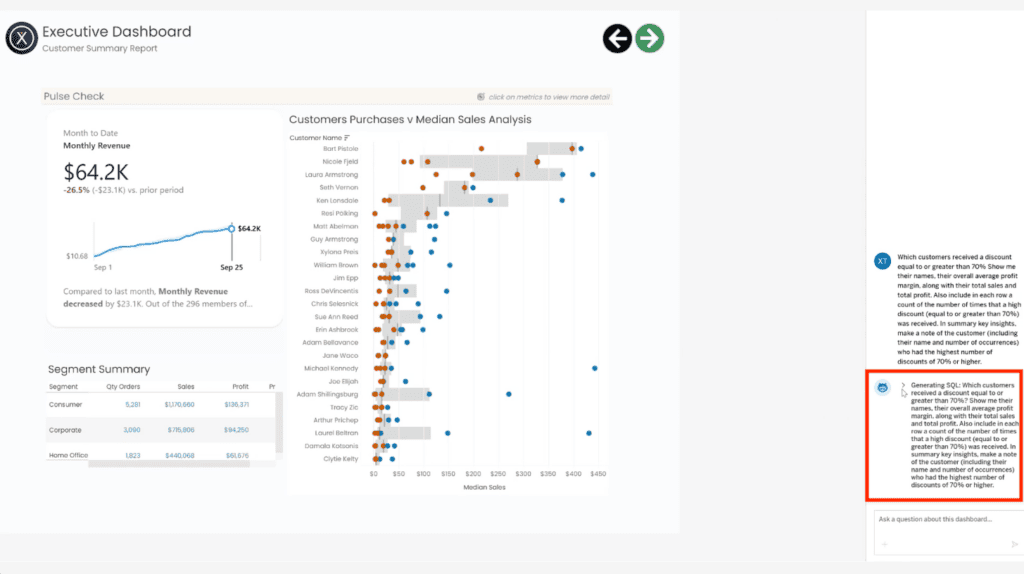
We can actually watch the agent work it out because it shows you the analysis that it’s doing as it processes the question. Now it’s running the SQL, making a plan, and now it’s giving me results.
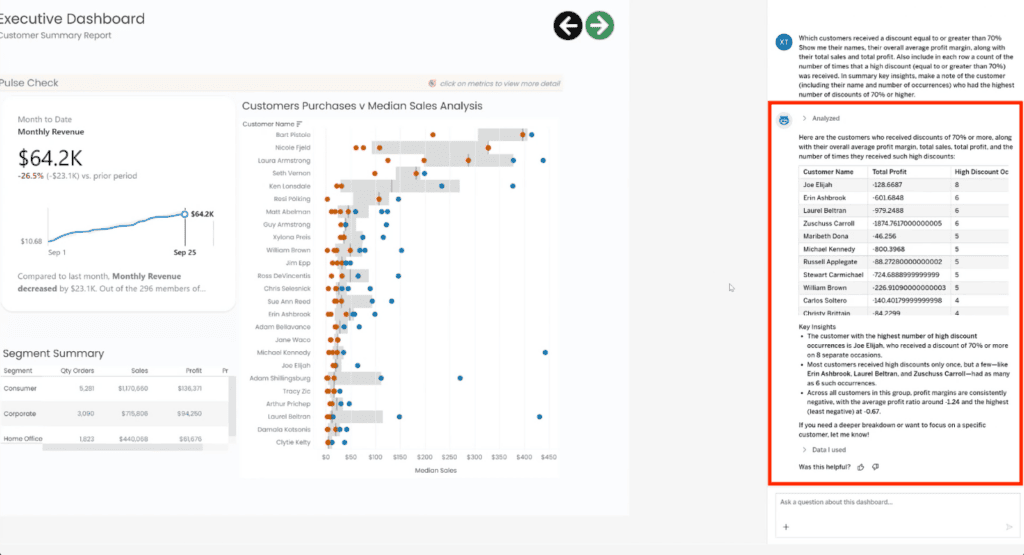
So I can expand my margin and see what it’s got. It’s giving me a table, quite a bit of detail, the number of occurrences for the big discounting, with what has happened in terms of their profit ratio and total sales.
Gave me some key insights at the bottom here.
Now, what if I wanted to set this as a policy, though, so that it was not that I was having to give such a comprehensive question, but it rather would understand what our discounting policies as a company were? That’s where business preferences comes in, because you can use a small, simple text file, save it as a markdown file, and go ahead and set those thresholds of whatever for discounting, for profit ratio.
To be able to edit this and add this context, we go into Edit mode, and we go into Configure Settings, we Replace the sample file that’s there. And now you can see that my file that has 4 preferences is in there.
I’ll need to publish this dashboard to be able to make it take effect.
With that file saved, now I can ask a much simpler question to my agent.
And if I wish, I can watch it analyze and process generating the SQL query, doing the planning. If I open this, it’ll also give me a lot more detail. And now I have my results. You can see that it’s done exactly what I asked it to do about organizing the output in descending order based on the profit and giving me clarity about what’s happening with those that are policy violations. And it seems… And see how in this comment, you can see specifically that it’s calling out that it is a policy violation to be extending a discount above 65%.
If I wish to validate the outcomes depending on what data it used and how it translated my question, it’s included that below as well.
Makes for a really trustworthy resource, and I’m excited to see how this product evolves.
What Are Business Preferences?
Business preferences give Tableau Agent context about how your organization interprets its data. They can describe policy thresholds, highlight important business conditions, and specify how results should be presented.
In this example, a short Markdown file defines four preferences covering discount limits, profit ratio thresholds, and number formatting.
For Tableau Cloud, each Business preference file applies to the dashboard Q&A in the workbook where you upload them. See Tableau’s business preferences documentation.
See Business Context in Action
Before I walk through the setup in Tableau Cloud, let’s look at how business context supports conversational analytics in Tableau Next.
In this video, I share three examples: exploring the performance of Silver accounts, analyzing a specific territory, and breaking down the products associated with Closed Won opportunities. Each question goes beyond the information immediately visible on the dashboard.
Follow along as I demonstrate how a prepared semantic model with robust business preferences teach the agent how to interpret questions and return relevant answers.
Read the Transcript
Celia Fryar: I have three samples to share of Conversational Analytics and the results from the Agent because things are queued up well here in terms of preparation.
In this case, I’ve asked a question that is very generic about silver accounts, and you can see that in this visualization that’s on screen, we have an acquisition pattern over time, and we have the different tiers, but we don’t have any specific things about their performance on this particular dashboard.
So asking a general question about how are they performing could have been way too vague, but because of the information that this agent has about our business, it’s able to give me a summary, some information about the top performers by bookings, patterns by account type, the top 15, more detail here about them and their bookings, opportunity amounts that were here.
I could download this table as a CSV. And then below this also, it’s always giving me the sources that it used as well as the data, specific fields that it used. So I can also then track down if there’s something that I don’t think that’s in alignment. Another example here is asking, in this case, about a specific territory and the performance of it is,underneath the data that’s on my dashboard, but it isn’t specifically called out. So I’m able to ask that question and have it give me quite a sufficiently comprehensive answer for this question.
Another example here would be about the opportunities here, and I’ve asked it to give me a breakdown of what the products were that were made up of the Closed Won accounts in this particular dashboard, and it’s given me that information very clearly available in a summary form and then in a little chart with the CSV available.
Reference showing me clearly what it’s referenced to create the information so I can validate it and I can also understand then if there is something that is not what I expected to see, how I can also troubleshoot it.
So here’s where the magic happens inside this matrix model. It begins with purposefully selected and created metrics aimed at those questions that you anticipate will be answered. The calculated fields, we have 27 of them in this case. Each thing has been well-documented with descriptions, as you can see underneath here.
Then we have our data objects. Each table’s been described. Every column that’s holding business data is also been described. So it’s giving the agent the kind of information it needs to do a good job of interpreting what’s here.
Beyond that, we have the business preferences. For Tableau Next, the business preferences is a single file that addresses the entire semantic model, and we can have up to 30,000 characters, which you can see here. We’re using roughly half of it. We start with some specific guardrails to handle ambiguity with, whether or not it’s gonna make assumptions, what’s it’s gonna do in terms of making claims for causation, and giving it some guidance on if there’s anything that is a governed metric and then a pseudonym or default interpretation, how does it resolve the potentially competing priorities there.
We have this file that’s gonna cover quite the scope. So all the way from jargon, use of language, all the way through to presentation structure. So if we were out of space here, we probably wouldn’t have added this section down here. But in the end here, I have a section on query scope and result shape, as well as output presentation information.
But, that just makes a smoother user experience. If we were out of room that would be less important, but then we have the advantage of being able to do it in this case.
So that’s what queues up this agent to be successful with the interactivity with your users.
In the video, I point out the preparation behind those responses: purposefully defined metrics, additional calculated fields, and descriptions for tables and business data columns. We view the business preferences, which add guidance for interpreting terminology, handling ambiguous questions, and organizing the output.
Along with the response, I review the audit trail that follows each answer, in the list of sources and fields the agent used. These details provide a way to validate the results and investigate anything that doesn’t align with expected results. From it, I can discover ambiguity, vocabulary alignment issues, and details that show me how the result was created. Sometimes, it simply confirms that the question was rightly answered and helps build confidence in the agentic skill.
In Tableau Next, business preferences apply to the semantic model. The Tableau Cloud tutorial below uses business preferences as well, but they are smaller and are specifically saved within each dashboard. With that distinction in mind, let’s walk through how I add discounting and profitability rules to Tableau Agent in Tableau Cloud.
Before You Begin
You’ll need:
- A Tableau Cloud site with the required Tableau Cloud+ or Tableau+ access and Tableau Agent in Dashboards enabled.
- AI Access and Full Data Query permissions to use Dashboard Q&A.
- Permission to edit and publish the workbook.
- A dashboard with data relevant to your questions.
- A text file containing your business preferences, saved in markdown format.
Tableau currently documents this capability as beta, with business preferences supported in Tableau Cloud version 2026.2.6 and later. Review Tableau’s current requirements.
In this tutorial, I start with an existing customer summary dashboard that includes sales, profit, and customer purchasing information.
Step-by-Step Guide to Set Up Business Preferences in Tableau Cloud
1. Open Tableau Agent and Ask an Initial Question
Open your dashboard in Tableau Cloud and select Tableau Agent.
In this example, I’m using a customer summary dashboard to explore how discounting affects profit. I start by asking which customers received discounts of 70% or more. I also ask for:
- Each customer’s average profit margin.
- Total sales and total profit.
- The number of times each customer received a high discount.
- A summary highlighting the customer with the most high-discount occurrences.
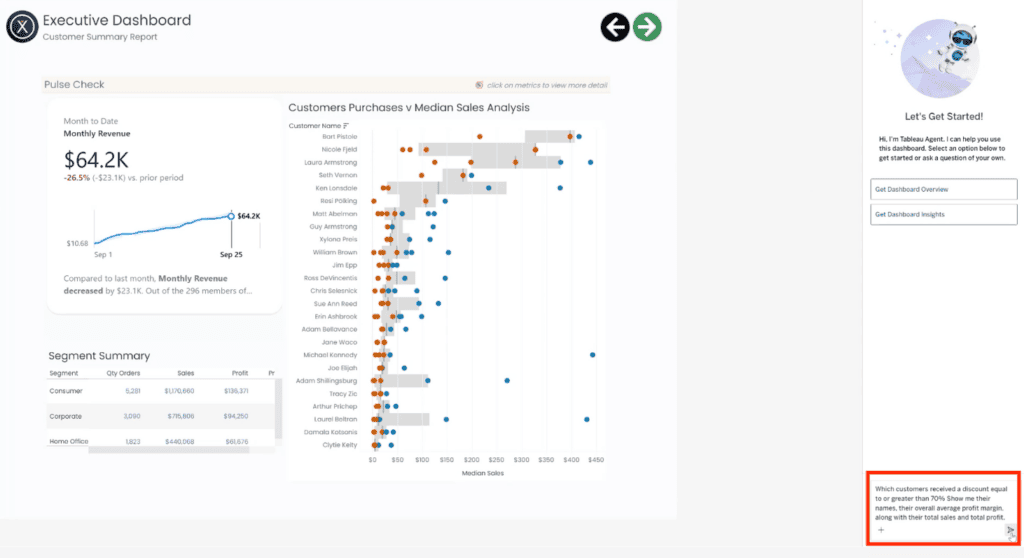
This gives me an initial analysis, but it requires a detailed prompt. Next, I’ll add business context so I don’t have to repeat our policy thresholds in every question.
2. Review the Initial Results
After submitting the question, I can watch Tableau Agent process the request and generate a query.
The response includes a table with customer-level results and key insights. I widen the pane to review the discount occurrences, profit ratios, and total sales.
Now I want the agent to understand our discounting and profitability policies. That’s where business preferences come in.
3. Create Your Business Preferences File
To provide that context, I use a short text file saved with an .md extension.
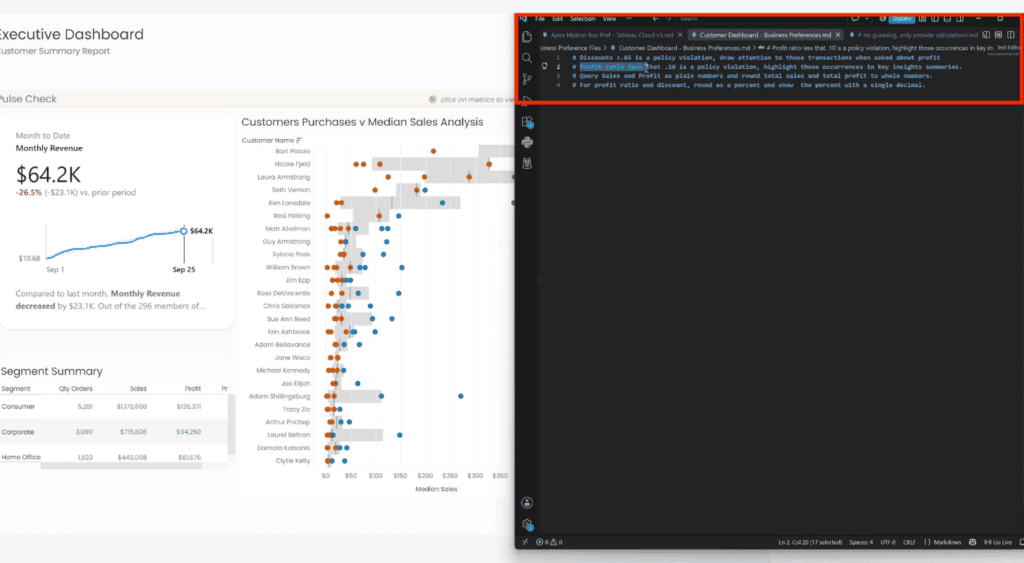
My file contains four preferences:
- Flag discounts greater than 65% as policy violations and draw attention to those transactions when asked about profit.
- Flag profit ratios below 10% as policy violations and highlight them in summaries.
- Display sales and profit as plain numbers, rounding totals to whole numbers.
- Display profit ratios and discounts as percentages with one decimal place.
These thresholds are specific to this example. Use rules that reflect your organization’s policies and reporting needs.
Start each preference with a # heading on each new line so Tableau can recognize it as a separate item.
4. Open Configure Settings in Edit Mode
With my file ready, I return to the dashboard and enter Edit mode.
In the Tableau Agent pane, I select Configure Settings.
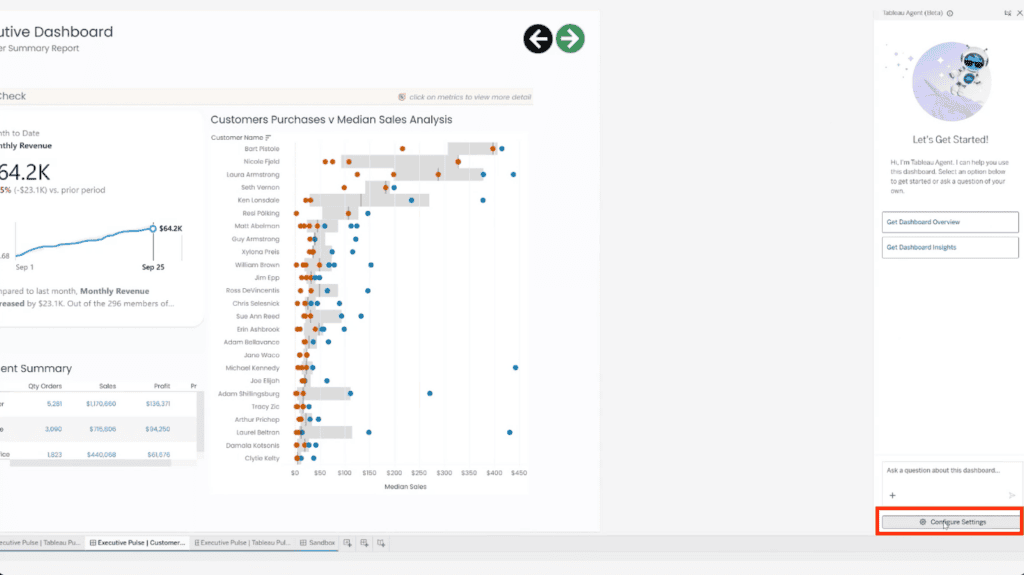
5. Upload or Replace the Preferences File
Under Dashboard Q&A, I confirm that Show on this dashboard is enabled, then locate Configure Business Preferences.
In my example, a sample file is already loaded, so I select Replace file and choose my markdown file. If you haven’t added a file yet, use the upload option.

Once the file is uploaded, I can see 4 business preferences listed in the settings pane. This matches the four rules in my file.
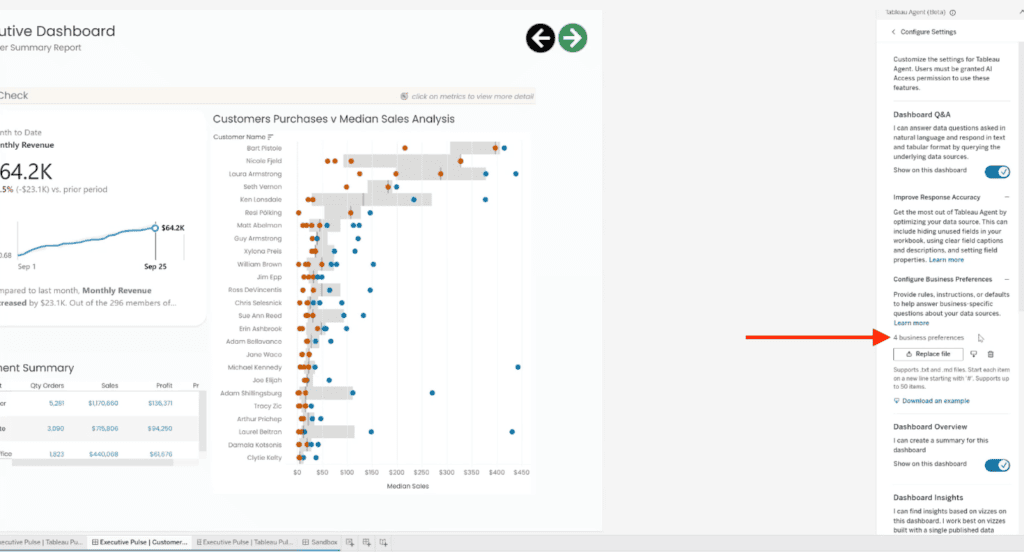
6. Publish the Workbook
Next, I publish the workbook to save the updated configuration.
This step is essential: I need to publish my changes before returning to the dashboard to use the saved preferences in my analysis.
7. Ask a Question Using Your Business Context
With the preferences saved, I can ask a simpler question without repeating the policy thresholds:
Provide a list of the customers who received discounts that resulted in a policy violation, along with full transaction line details, sorted by the largest lost profit amounts.
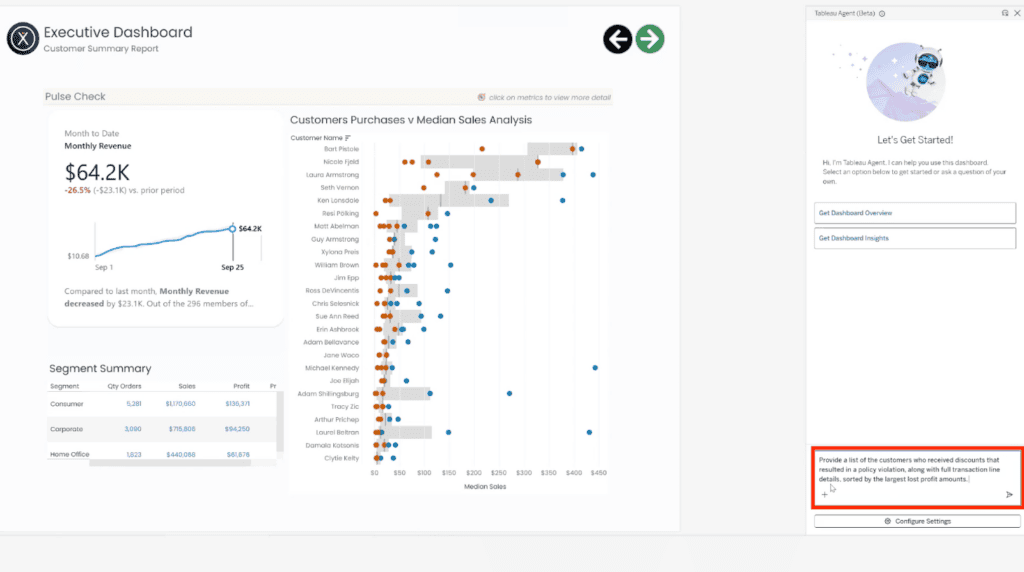
I’m specifying the details I want and how to organize them, while the preferences file supplies the business context.
The response includes transaction details and key insights. In the summary, I can see the agent calling out discount rates of 70% and 80% as exceeding the 65% policy threshold.
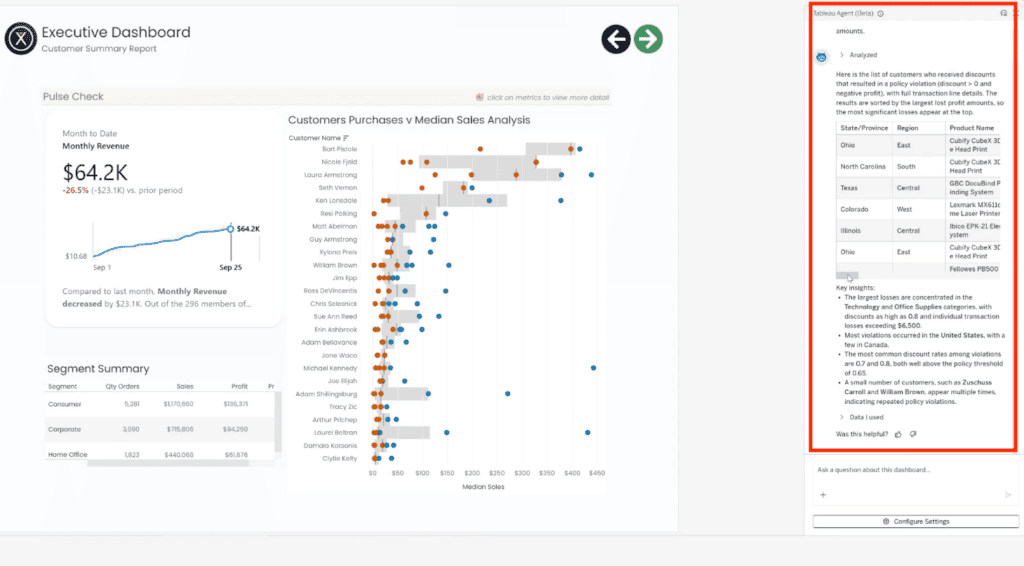
8. Validate How the Agent Interpreted the Question
To check the answer, I expand Data I used below the response. This lets me review how the agent interpreted my question.
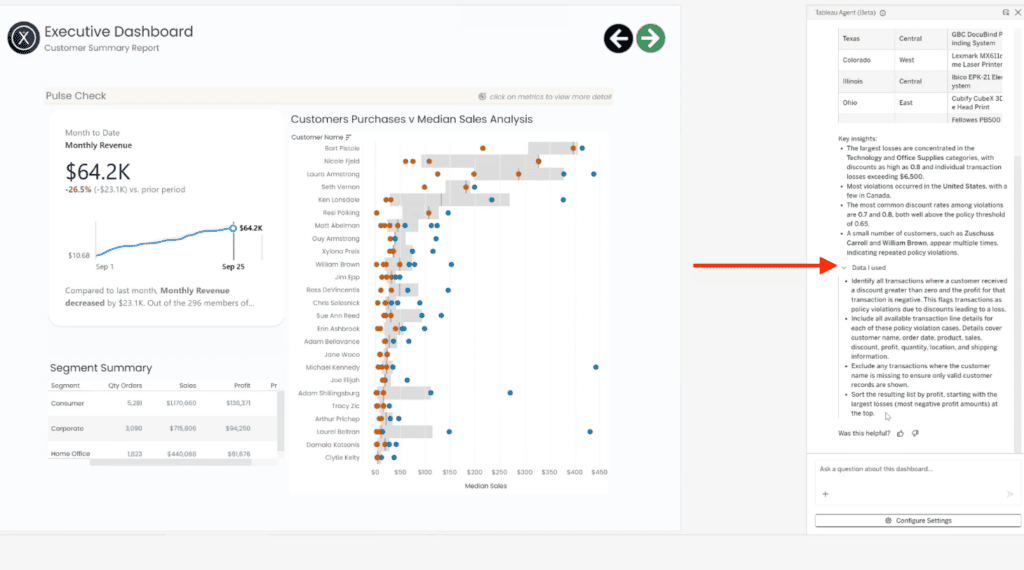
I check whether the results use the intended thresholds, include the requested details, and place the largest losses first.
Business preferences help me provide context with less repetition. Reviewing the agent’s interpretation helps me confirm that the analysis answers the question I intended to ask.
Keep Your Business Preferences Specific
This step-by-step combines policy rules with presentation instructions. Both are useful, but each preference should have a clear purpose.
Define thresholds precisely, distinguish separate types of violations, and specify which metric determines the sort order. “Largest losses first,” for example, is clearer than “sort by profit descending” when profit values are negative.
As your policies change, update the preferences file, replace it in the workbook, and publish again.
Turn Business Context into More Useful Questions
Business preferences let you bring established company practices, domain specific jargon, and context into Tableau Agent conversations. In this example, the workflow moves from a detailed question about high discounts to a shorter request about policy violations. The option to inform the agent in this way enables it to be more successful with the intent of questions and interpreting the implications of metrics it is reporting back to the user.
Want Help Getting More from Tableau Cloud?
Make it easier for your team to ask useful questions and understand the answers. XeoMatrix can help you explore how Tableau Cloud, dashboard design, and semantic modeling fit into your analytics workflow.
Connect with XeoMatrix to discuss your Tableau needs.