
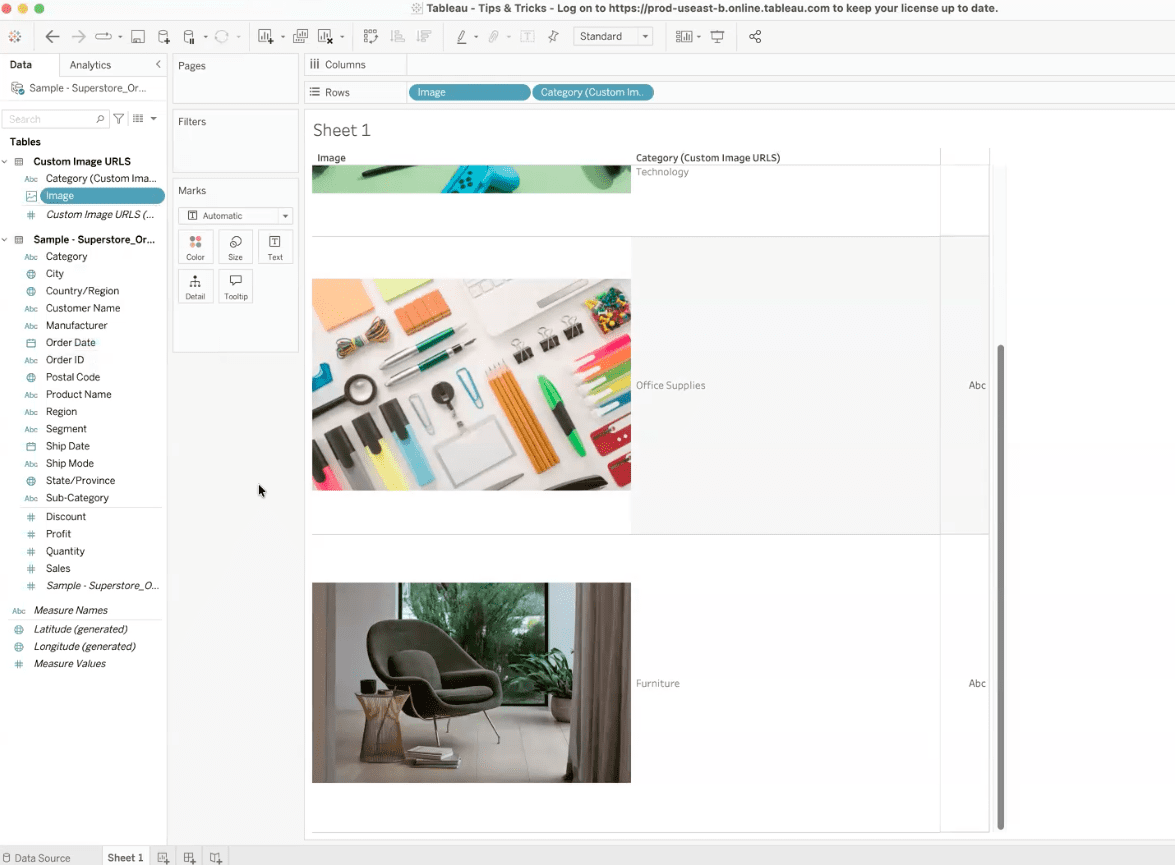
Adding visual context to a dashboard can increase engagement and make the data easier to understand. One simple way to do this is to use the Tableau Image URL field, which lets you connect images directly to your data so they update dynamically as your dataset changes.
In this guide, you’ll learn how to host images, add image URLs to your data source, and configure the field in Tableau so the images display automatically in your visualization.
Tutorial Video
Show/Hide Transcript
Hi, I’m Lauren Cristaldi with XeoMatrix, and today I’m gonna show you the best way to incorporate Image URL Field Types in your Data. So here I have some sample superstore data, and as you can see, I’ve attached those image URLs to the Category Field so that they dynamically change depending on the Category.
Now, to get started, I use Cloudinary. For the web-based image URLs, you need to use a cloud repository, so you can’t use Google Drive or anything like that. It actually has to be a repository for images where you can access those image links. IMDB is another example where you can actually pull that image URL. But for Cloudinary, you’re able to add [00:01:00] any image you can think of. So you go up here to Upload. You have all of these different options, including, which I use the most, an image search. So if I wanted to look for furniture as one of my Categories, now I can pull one of these images. It’ll load it into this folder on Cloudinary.
So let’s just pick a random one. It will upload into this folder. One other thing to note is that Tableau can only load anything that’s under 200 kb, so you have to make sure that these are under 200 kb which this one is. And it can be a JPEG or a PNG or even a GIF, which is pretty cool.
Now if we go over to our data, I’m just using Excel for this. If you’re using a database table, then you can create another table where you have a primary key that matches this table for the associated image URL field.
In this case, my other table is just another tab, and this, for example, I have the three different categories that we’re using, and I’ll paste that new Cloudinary image URL. Now, if we save that and we can go back to our Tableau workbook.
We’ll refresh that extract. And now under furniture, we have that new image to change it. So when it comes in, it’s just gonna be a string. But over here you see this little like photo icon. You change that role by going to Image Role and then URL. So you wanna be String, Default, Image Role, URL. And that’s it.
Step-by-Step Guide to Add Dynamic Images as Fields in Your Data with the Tableau Image URL Field Type
1. Choose an Image Hosting Repository
Before adding images to Tableau, ensure they are hosted on a service that provides direct image URLs.
For this example, we are using a free account on Cloudinary.com as the image repository.

The key requirement is that the image be accessible via a public URL. Tools like Google Drive are not suitable because they do not provide direct image URLs that Tableau can render. Other image repositories (like IMDb) can work as long as they provide a direct link to the image file.
2. Upload or Find the Image to Use
Inside the image hosting platform, upload the image you want to associate with your data.
In this example, we use the image search from Cloudinary’s toolbar to find an image to represent the Furniture category in our dataset.
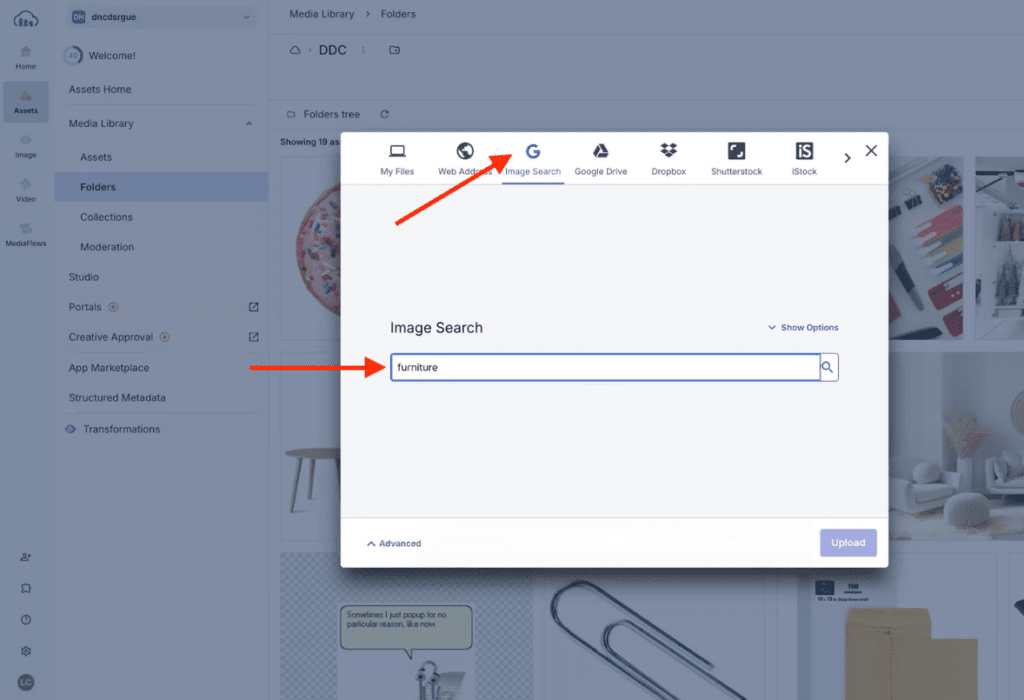
Once selected, the image is added to a folder for later reference.

Before using the image in Tableau, verify that it fits Tableau’s size and format limits. Tableau can only load images under 200 KB and supports JPEG, PNG, and GIF files. Verify that it meets Tableau’s requirements by clicking on the three dots on the image thumbnail. A dropdown menu will appear. From this menu, select Copy URL. When the URL panel opens, Cloudinary will display details about the image, including its file size and format.

Verify this before you connect the image URL to save time and prevent display issues later.
Once the image is uploaded, copy the direct image URL provided by the repository.
This URL will be used in your dataset so Tableau can retrieve the image dynamically. The URL should point directly to the image element rather than to a webpage containing the image.
3. Add the Image URL to Data Source
Next, add the image URL to your dataset.
In the example, the dataset is stored in Excel, and the image URLs are placed in a separate worksheet tab that includes the Category field. Each category is matched with its corresponding image URL.
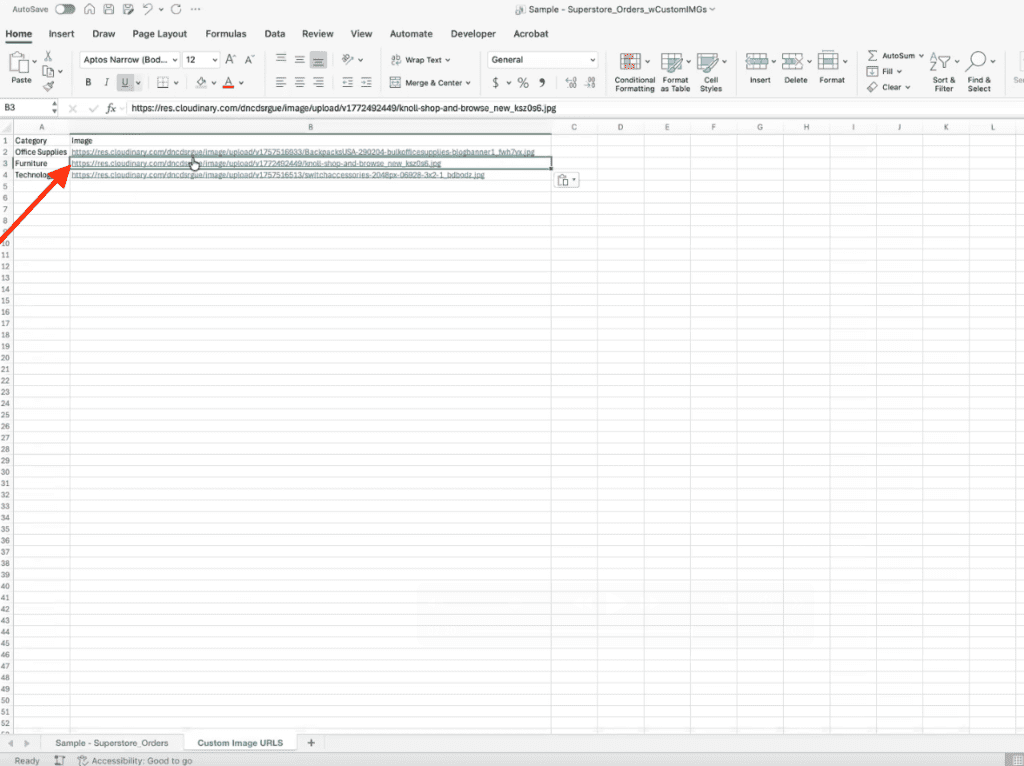
If you are working with a database instead of Excel, you can store the image URLs in a separate table and link them using a shared key or identifier.
4. Refresh the Data in Tableau
After adding the image URL field to the dataset, save the changes and return to Tableau.
To update the data, go to Data → Refresh All Extracts in the top menu. A confirmation pop-up will appear.
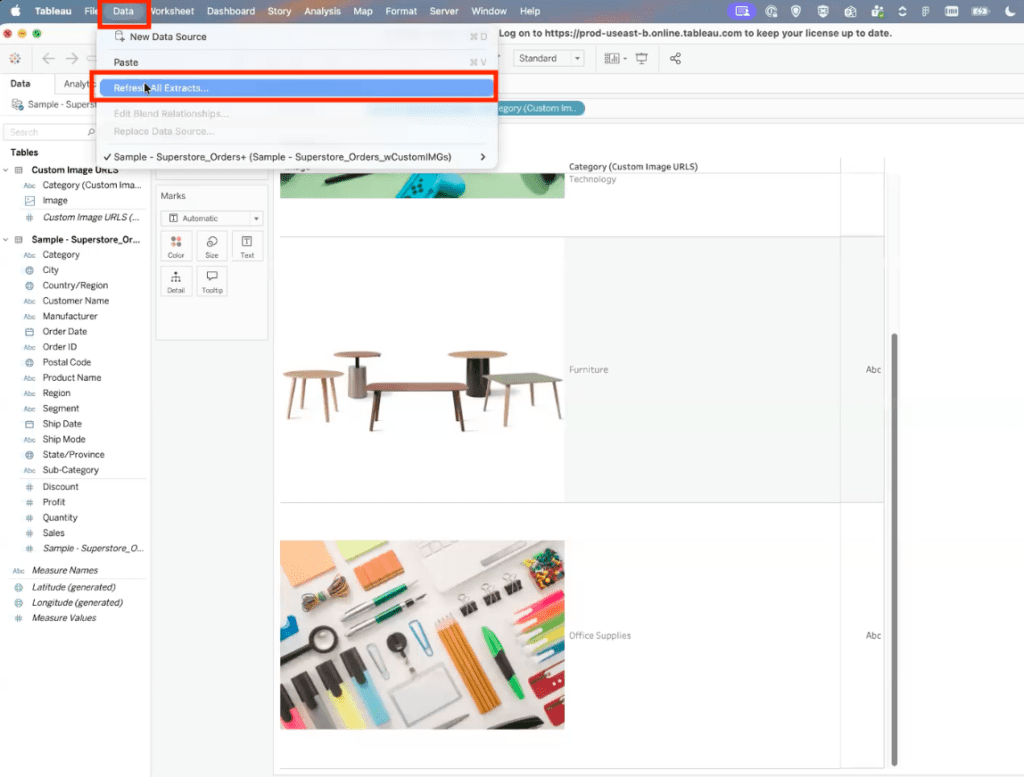
Click Refresh to reload the extract.
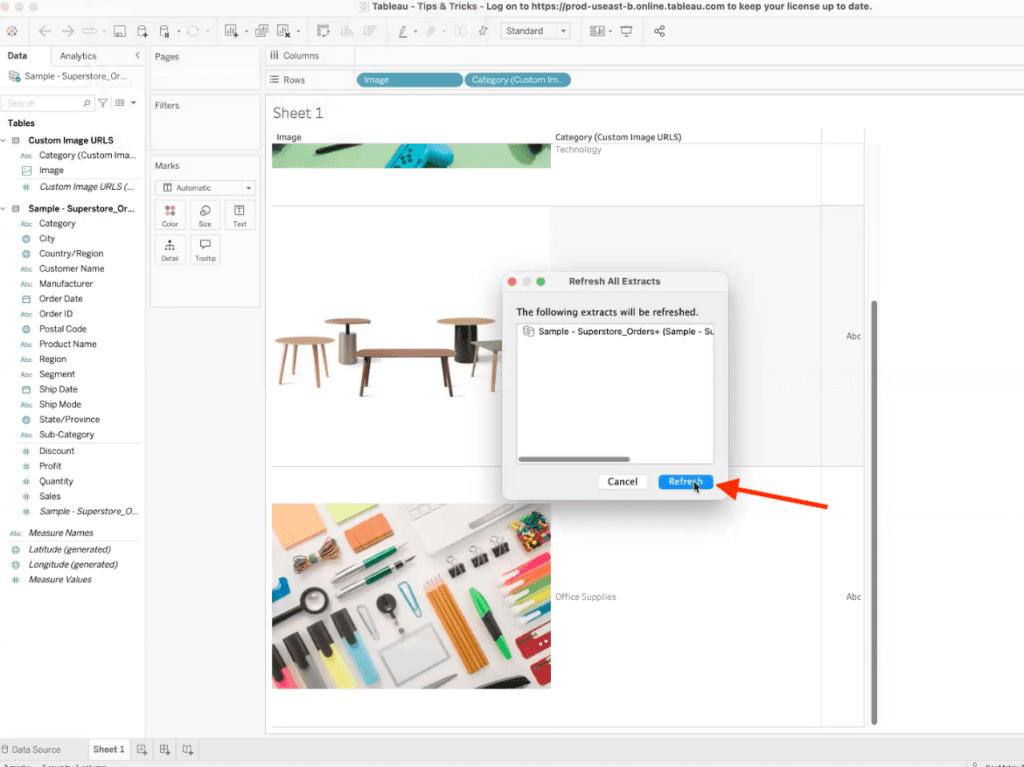
Once the refresh completes, Tableau will recognize the new field containing the image URLs, and it will appear alongside your other data fields.
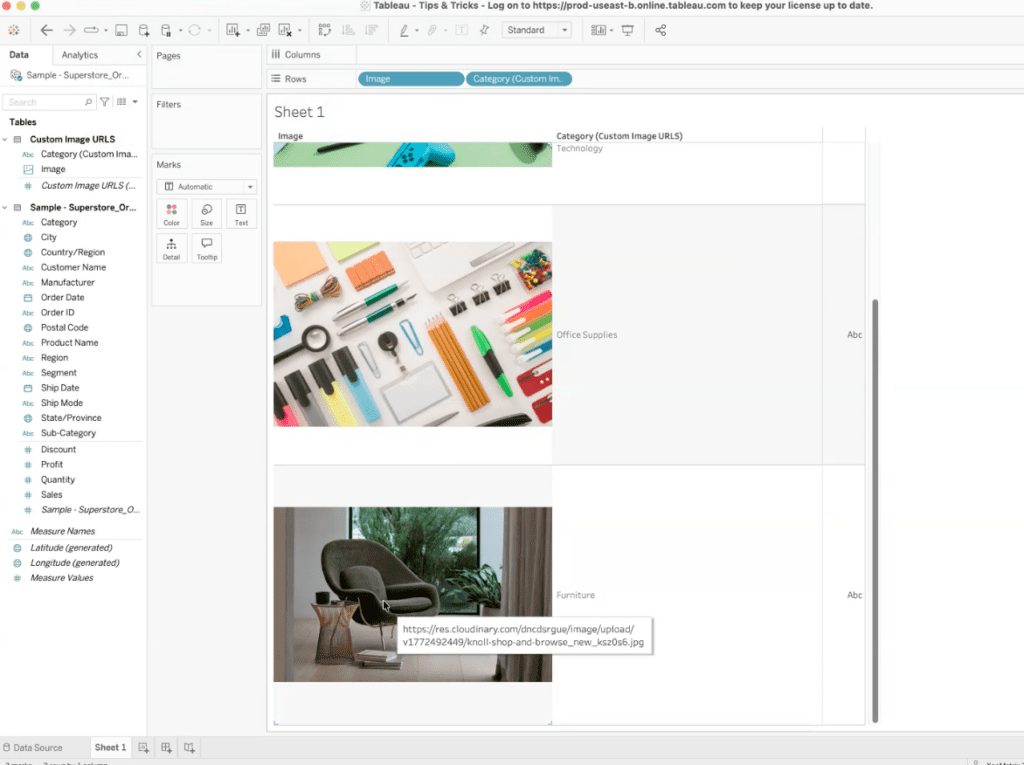
5. Update the URL Column’s Field Type
When Tableau first loads the new field, it will appear as a string.
To allow Tableau to render the images, change the field role:
Right-click the field → Image Role → URL
Also, make sure “String” and “Default” are selected.
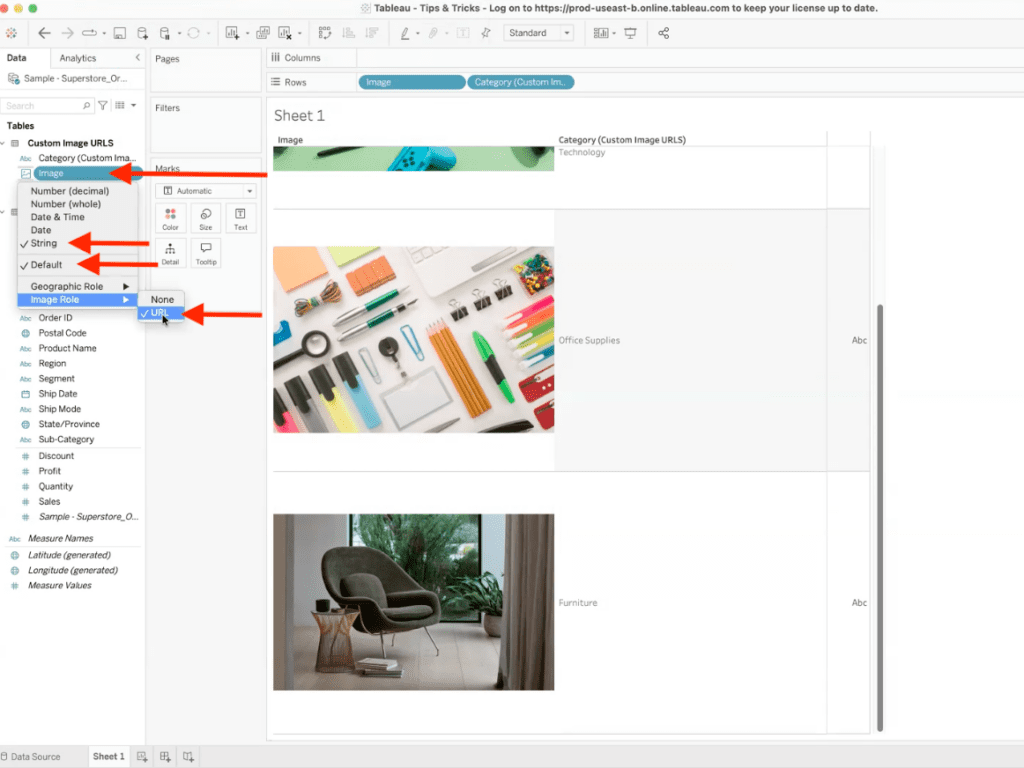
Once the column is set to Image Role → URL, Tableau recognizes that the values represent image links rather than plain text.
6. Display Dynamic Images
After the field is configured as an Image URL, Tableau can display the images dynamically.
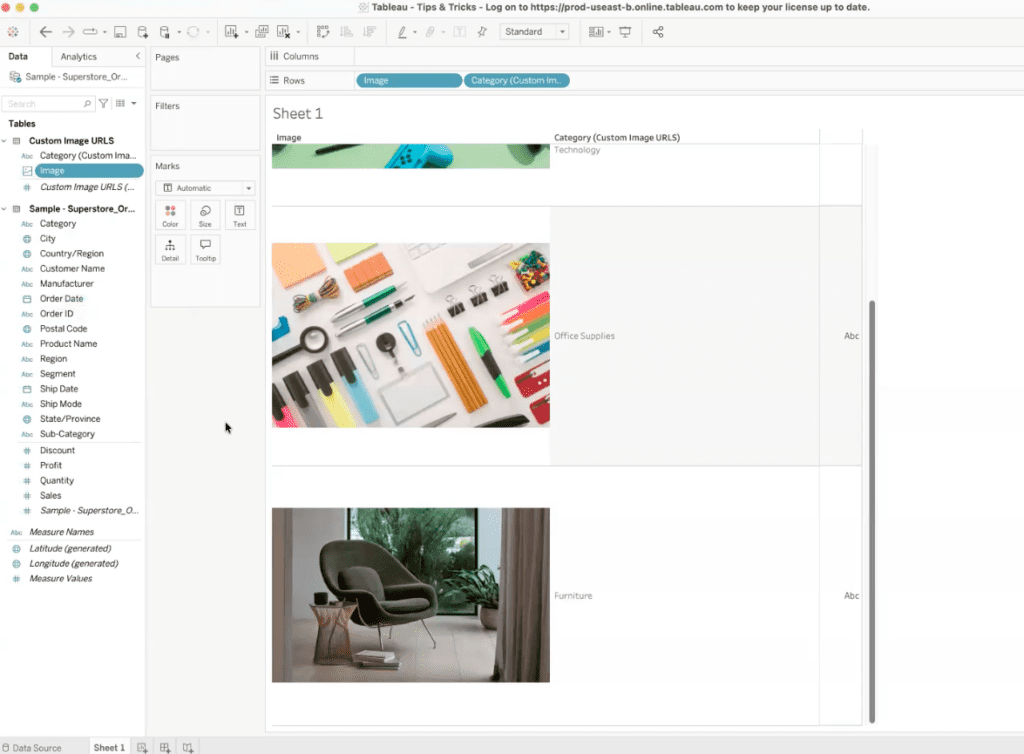
Because each image URL is related to a category, the displayed image updates automatically based on the data in your view. For example, selecting Furniture will show the furniture image associated with that category.
This approach allows images to update automatically without manually placing static images into the dashboard.
Want Help Creating More Engaging Tableau Dashboards?
At XeoMatrix, we help teams design Tableau dashboards that are more visual, intuitive, and easier to explore. Techniques like dynamic image fields can add context to your data and make dashboards more engaging for end users. Whether you’re refining an existing dashboard or building something new, our team can help you apply practical Tableau techniques that align with your data, your goals, and your users. Get in touch with XeoMatrix to talk about your Tableau dashboard strategy.